
Quick Start Guide
A quick start guide to download and start a free trial of Order & Out Multichannel and Warehousing.



Let’s get started!
Downloading the installer to a Windows PC.
Register and request a FREE 7-day trial.
Keeping your Order & Out environment up-to-date
Download Order & Out
-
-
To begin the installation, click on the Download Free Trial button. The download will start automatically.
Locate the installer by clicking the New Download icon in the top-right corner of your screen, or by navigating to the Downloads folder on your PC.
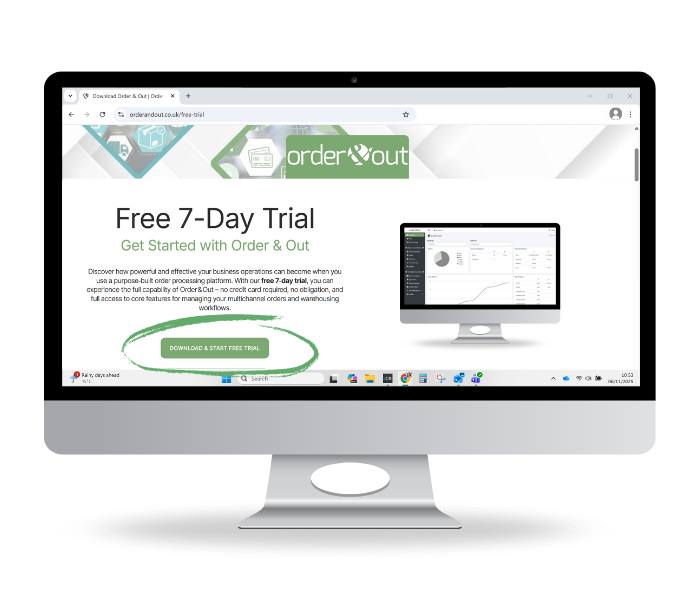
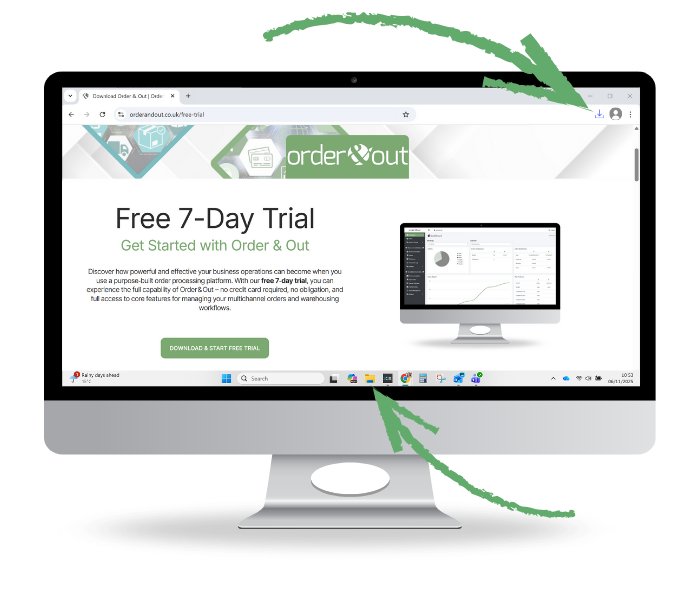
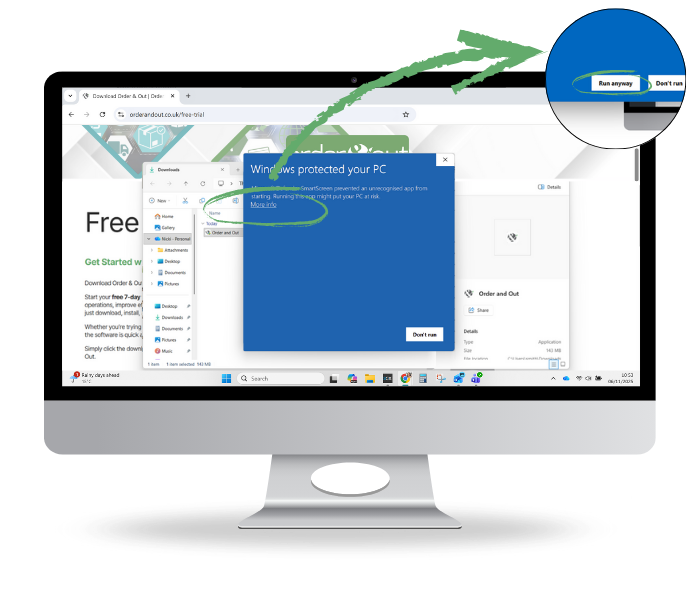
If a file is not commonly downloaded, you may see a warning message similar to the ones shown in Chrome and Edge below:
In Chrome, click on More info, then Run anyway.
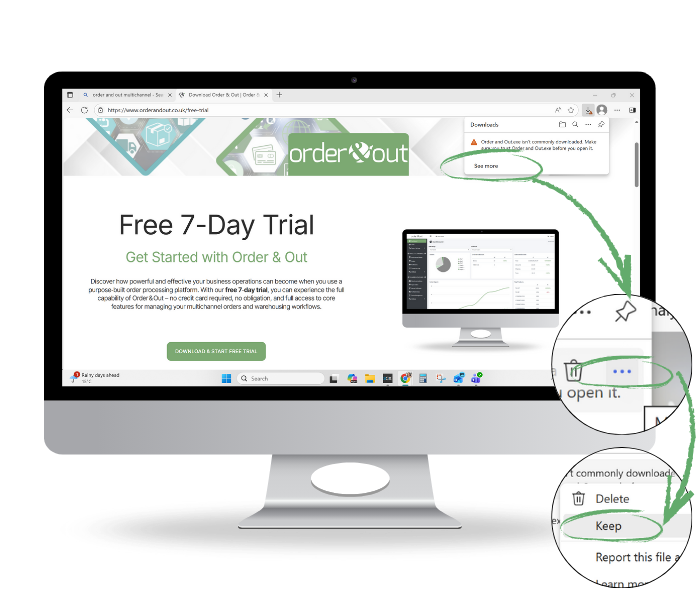
In Edge, hover over the ellipsis (more actions) and select Keep.
Once you have read and accepted the Licence Agreement, choose the install location on your PC, click Install, and the download will begin.
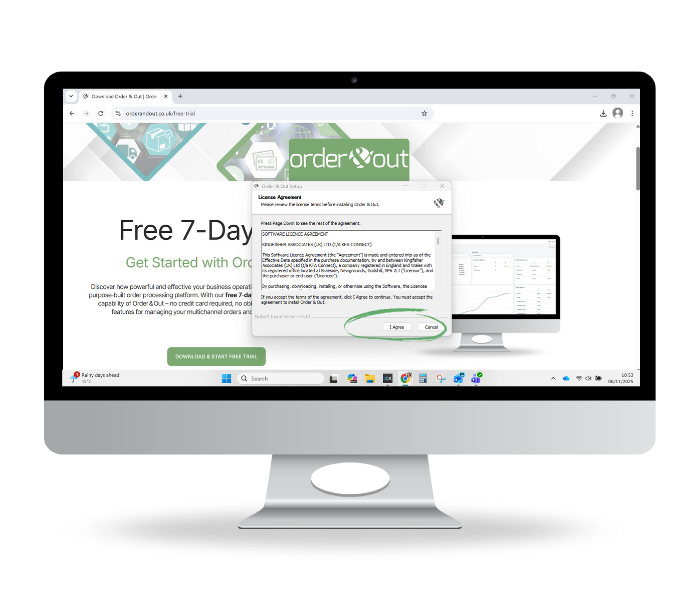
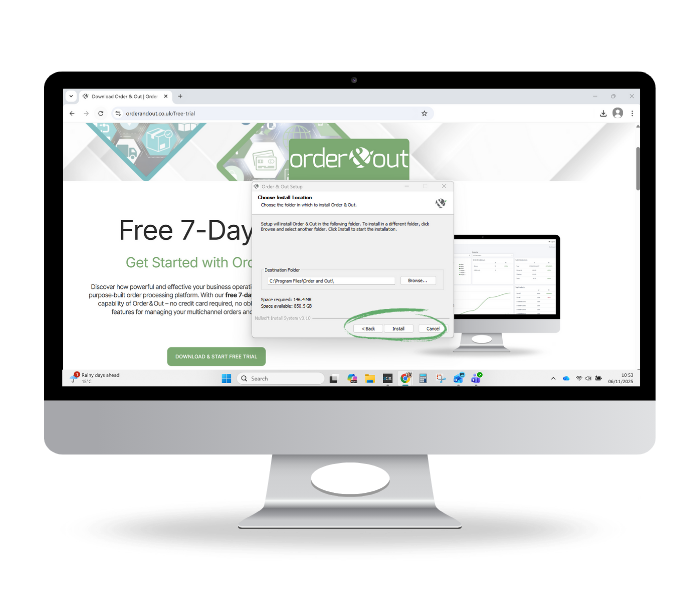
Once the download is complete, the program will be saved to your PC, and a shortcut will be added to your desktop.
Close the download dialogue box, and the Order & Out program will launch the Initial Setup page.
Initial Setup
Register
-
Launch the program from your desktop and register.
-
Enter a username, your full name, your email address and set a password.
Password Tip: The password must contain at least:
8 characters
1 uppercase character
1 digit
1 special case character
-
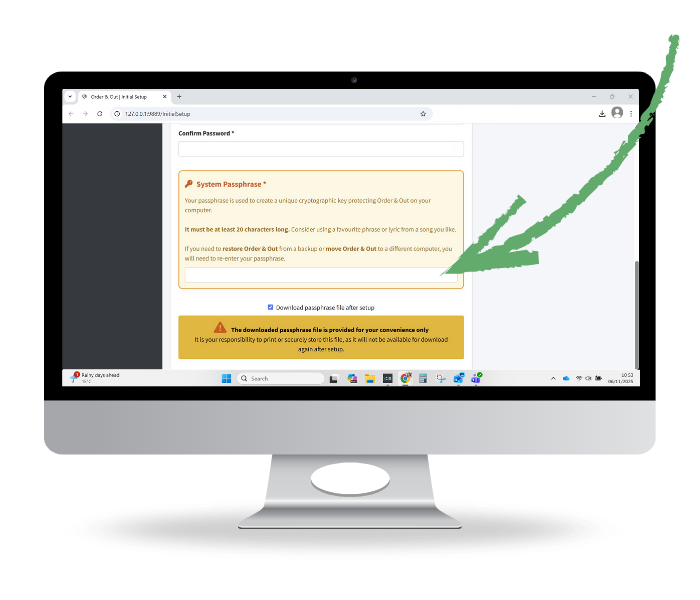
You will also be prompted for a system passphrase.
Consider using a favourite phrase or lyric from a song.
Passphrase Tip: The passphrase must be at least 20 characters long.
Important: If you need to restore Order & Out from a backup or move Order & Out to a different computer, you will need to re-enter your passphrase.
Leave the tickbox checked to download your passphrase after setup. This will appear in your downloads file as a .txt file.
-
Click Save.
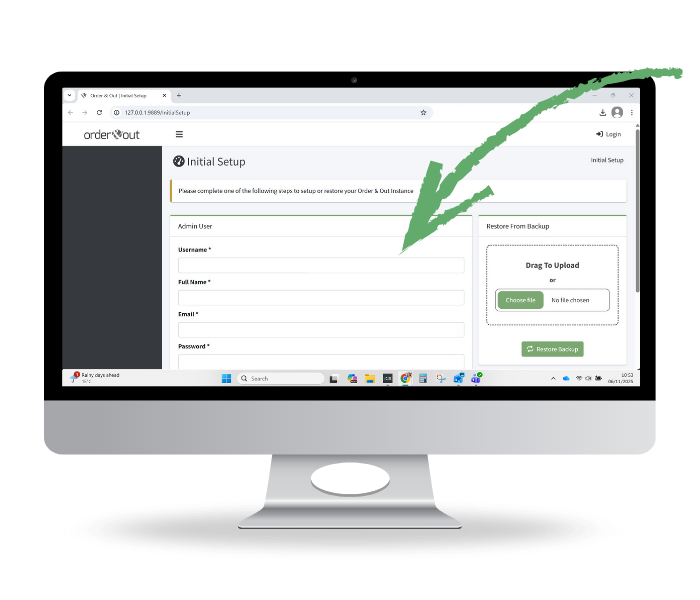
Activate Trial
-
The system will redirect you to the login page, where you can log in using your new username and password.
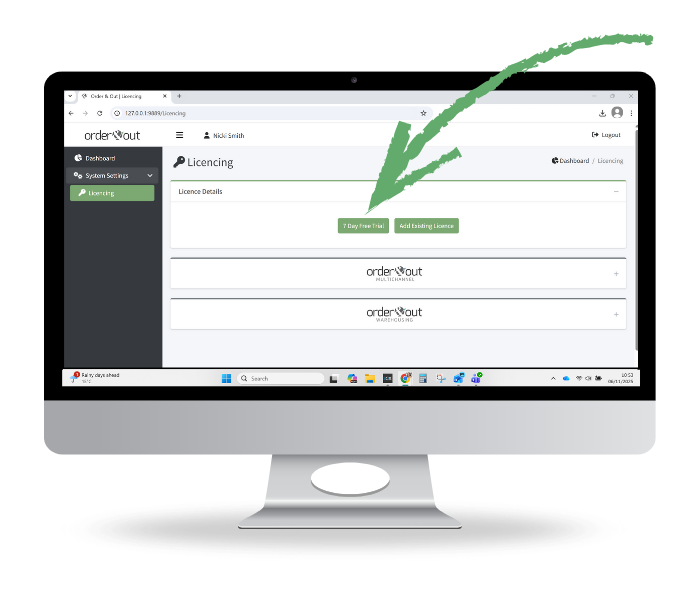
The Licencing page will display.
-
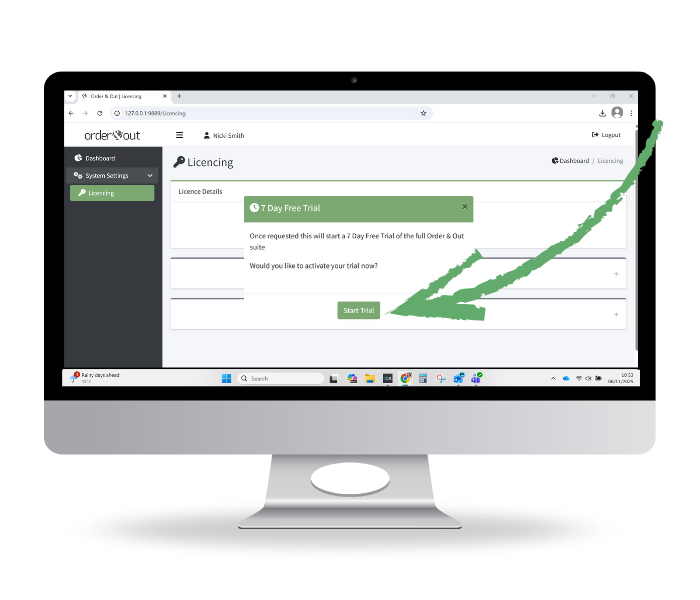
To start a free trial, click on the 7 Day Free Trial button.
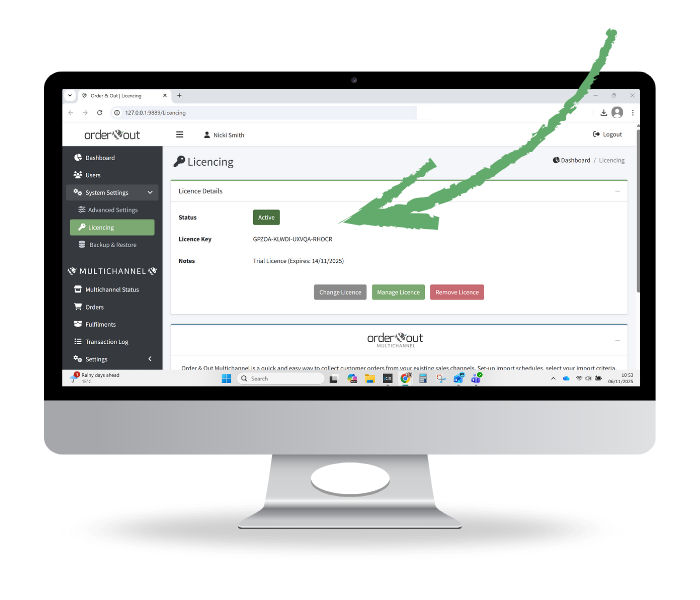
On the next screen, click on Start Trial and the system will display your active licence details and show the expiry date.
System Updates
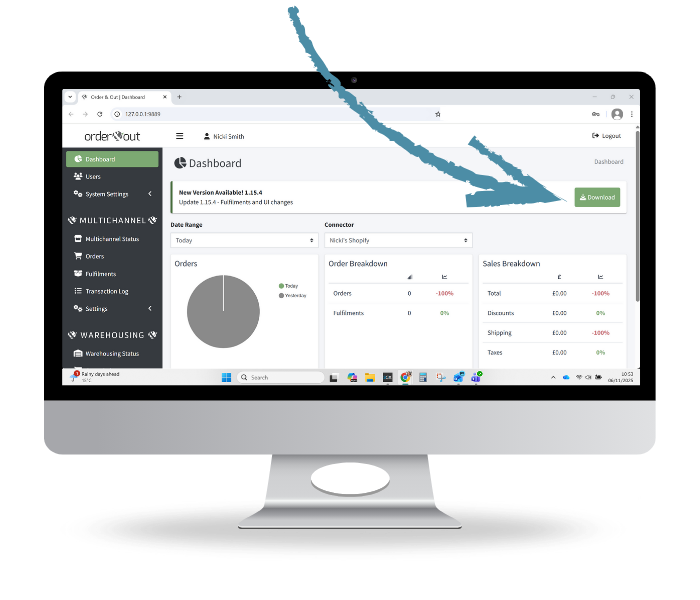
When system updates are available, a banner will appear on the Order & Out dashboard.
To download the update, click on Download - the file download will begin.
Follow the above process to open/run the download and install the update.
Note: It’s important to install system updates as soon as they are available.
Where to Next?
Contact Us
Have a question? Get in touch with our team here.