
Warehousing Set up
This guide covers setting up Order & Out Warehousing, covering adding Delivery & Collection Services, devices and the pick & pack process using a mobile device or barcode scanner.
Delivery & Collection Services
Manage how orders are fulfilled - including couriers, local delivery, and customer collection options.
The services defined here are used by both the Multichannel and Warehousing modules.
Add Delivery Service
-
From the Multichannel Menu, click Settings, then Delivery Services.
‘Other’ will already exist by system default and can be used for despatches/collections.
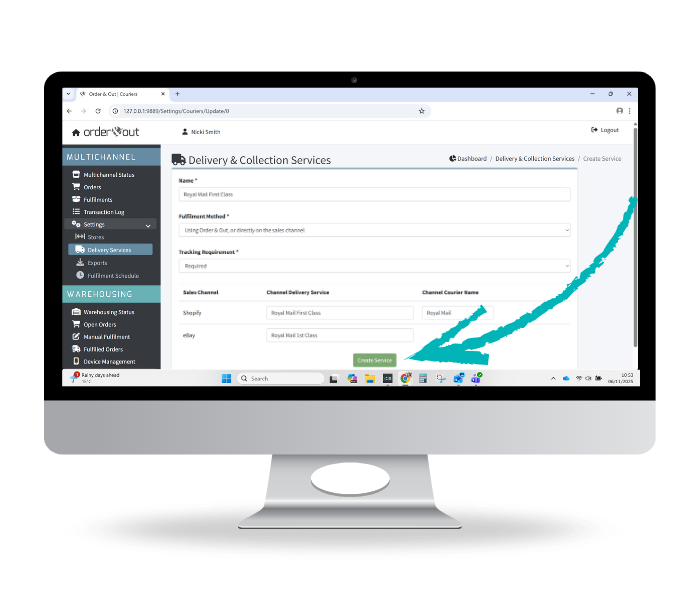
To add a new delivery service - click Add Delivery Service.
NB: If you plan to use the full Warehousing functionality, all relevant services for your sales channels should be added.
For Automated Connectors (Shopify & eBay), couriers will need to be defined for the tracking information to be sent back to your sales channel(s).
-
For orders fulfilled within Order & Out, choose Using Order & Out, or directly on the sales channel.
For orders fulfilled outside of Order & Out (directly via the sales channel), choose Directly on the Sales Channel. This is typically for customer collections or special fulfillment methods that can only be processed within the sales channel.
NB: Orders with the despatch method Directly on the Sales Channel will not appear in the Order & Out Warehousing dashboard.
-
Define if tracking information is None, Optional or Required.
The default setting is Optional.
-
Click Create Service.
-
Once the delivery method has been added, click the edit icon on the right side of the screen to define which sales channels use this service.
-
Repeat as needed for other delivery/collection services.

Define Delivery Service
-
Once the delivery methods have been added, click the edit icon on the right side of the screen to define which sales channels use this service.
Enter the Channel Delivery Service from your sales channel (which can be found on the Order Enquiry screen)
-
Repeat as needed.


Where to next?

Contact Us
Have a question? Get in touch with our team here.